
The Project Type Tab, shown below, offers the following options:
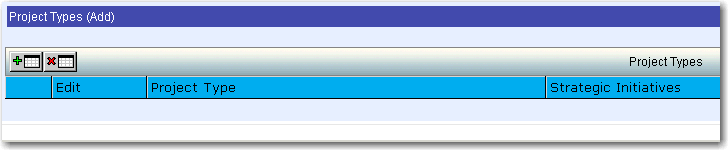
To add a Project Type, click the Add button:

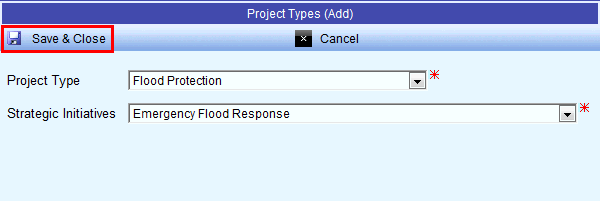
The Project Types (Add) window opens. After selecting a Project Type, the list of Strategic Initiatives changes based on the selected Project Type. After making selections from both, which are required fields marked with a red asterisk, click the Save & Close button.
The newly added Project Type displays:
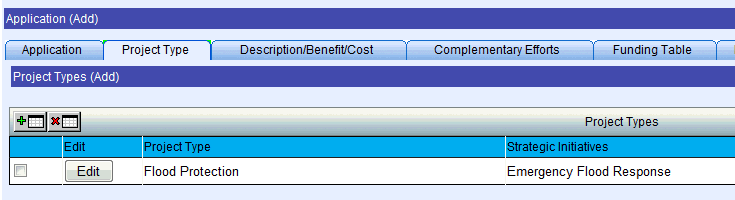
The same Project Type may have more than one Strategic Initiative, so these steps can be repeated (the same Project Type added with different Strategic Initiatives) until all Project Types / Strategic Initiatives have been added.
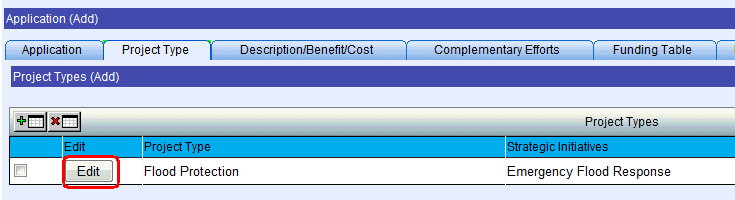
To edit a Project Type, click the Edit button:
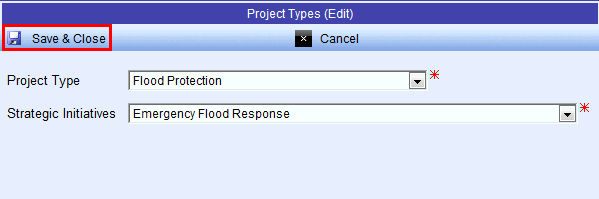
The Project Types (Edit) window opens. After making any edits, click the Save & Close button.
To remove a Project Type, select the Project Type as shown below:

Then click the Remove button:

The newly updated Project Type list displays:
The next step is to click on the Description Tab.